Command Prompt is one of the for the most part prevailing
tools in Windows; but miserably, it is also the most unobserved one. Things
were not always like this; but with the beginning of GUI based operating
systems, people happening feeling that computing through command based tools
was boring. This ultimately lead the command prompt into obscurity.

However, the command prompt is not useless. In fact, it can be pretty
useful. This article provides some excellent tricks, secrets and hacks
that will make you realize that the Windows Command Prompt is not only
useful but also a tool that you should definitely give more respect to.
1-Watch ASCII version of the Star Wars Episode IV movie
very one of us has watched Star Wars on television, computer or in a
theater. It is the same movie with aliens fighting each other for
galaxies and such stuff. There is nothing new in it. But wait, have you
watched an ASCII (American Standard Code for Information Interchange)
version of Star Wars and that too in Windows using
telnet? A network protocol known only to computer wizards. Well if you have not, then you must do it now!
There is a complete copy of Star Wars done entirely in ASCII characters that you can watch in the Windows operating system (or any OS that supports telnet). The only thing required to watch it is an internet connection; speed does not matter.
To watch it on Windows XP, Mac OS X and Linux
- Go to Start, Run. (Only for Windows users)
- Now type "telnet towel.blinkenlights.nl" without the quotes and
press Enter. Users of Mac OS X and Linux can directly execute this code
in the terminal window.
On Windows 8, Windows 7 and Windows Vista
Telnet is turned off by default in the latest versions of Windows. So,
in order to watch star wars, you must first enable telnet by going to
Control Panel › Programs › Turn Windows Feature On or Off and ticking
both the telnet check boxes. After doing that, follow the steps given
below:-
- Go to Start, Search in Windows Vista and Windows 7. On Windows 8, open the main Start page.
- Type telnet and press Enter.
- In the following command prompt window, type "o" without quotes and press Enter.
- Now type "towel.blinkenlights.nl" without the quotes and press Enter.
If you do not need telnet anymore, you can turn it off.
A command prompt window
like the one in the image will open with the movie being played in it.
See the movie yourself. Did you enjoy watching this new version of Star
Wars? Well, I did and know it for sure that you would have too.
2- Create Matrix falling code effect
Inspired by the movie Matrix, this falling code trick is extremely
popular on social networking websites. Copy and paste the code given
below in Notepad and save the file as "Matrix.bat" or *.bat.
@echo off
color 02
:tricks
echo %random%%random%%random%%random%%random%%random%%random%%random%
goto tricks
 |
| Matrix Falling Code Effect - Notepad Trick |
Upon running the bat file, you will see the "Matrix falling code" effect.
Make Your Keyboard Type (Any) Message Continuously-VBS Trick
This
VBS trick can make any of your friend's keyboard type any message
continuously. Open Notepad, copy the code given below and save the file
as Tricks.vbs or *.vbs. You will need to restart your computer to stop
this. Try this after closing all important programs.
Set wshShell = wscript.CreateObject("WScript.Shell")
do
wscript.sleep 100
wshshell.sendkeys "This is a Virus. You have been infected."
loop
Send this file to your friends as an email attachment to see the fun.
Create a Harmless Funny Virus with Notepad-Continuously eject CD/DVD drives
This
VBS trick will create a code which will continuously eject all your
connected Optical drives. If you put them back in, it will pop them out
again. Copy this code and paste it in Notepad as Virus.vbs or *.vbs.
Set oWMP = CreateObject("WMPlayer.OCX.7")
Set colCDROMs = oWMP.cdromCollection
do
if colCDROMs.Count >= 1 then
For i = 0 to colCDROMs.Count - 1
colCDROMs.Item(i).Eject
Next
For i = 0 to colCDROMs.Count - 1
colCDROMs.Item(i).Eject
Next
End If
wscript.sleep 5000
loop
Double click to open this file and you will be impressed by this awesome trick.
Make a Personal Diary(Log) with Notepad (Easter Eggs)
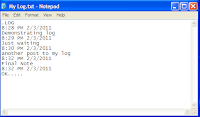 |
| Notepad Diary |
You can use this trick to create a personal log
with Notepad which will automatically include the current date and time
before your note. To do so, open Notepad and type
.LOG in capital
letters and press Enter. Save the file. Now, every time you open this
file, notepad will automatically insert the current time and date before
the note. Just enter your note and save the file each time after making
an entry.
All these Notepad tricks are totally harmless and would not harm your PC
in any way. To close any of the VBS trick given, open task manager and
close the wscript.exe process. These tricks work on
Windows 8, Windows 7, Windows Vista and
Windows XP.
3- Make Folders that you cannot delete
Have you ever wondered how you can make a folder which neither can be
deleted nor be renamed. Well, if you have, then you have come to the
right place. With this trick, you will be able to create folders in
Windows which cannot be renamed or deleted.
Basic Concept
The basic concept behind this trick is the use of
Keywords.
Keywords are reserved words in any programming language that cannot be
used as names of variables. Windows also uses certain keywords in its
programming. Some of them are con, aux, lpt1, lpt2, lpt3, lpt4, lpt5,
lpt6, lpt7, lpt8 and lpt9.
A Test
To test this concept, make a new folder in Windows and try to give it a name same as any keyword suggested above.
Result
Windows will not rename your folder to any of the keyword given above.
Trick
So the question arises, how can we make a folder with a keyword as its
name? The solution to this problem is included in Windows itself. As we
know that Windows has evolved from D.O.S.(Disk Operating System), its
commands can be used in Windows. You can use D.O.S. Programming in
Windows to create a folder with a keyword as its name using the steps
given below:-
- Click on Start.
- Click on Run. Type in "cmd" without quotes.
- In the Command Prompt Window that opens, type the name of the drive you wish to create your folder in the format <drive-name>: and press Enter. e.g. If you wish to create the undeletable folder in D drive, type "D:" without the quotes. Note that the folder cannot be created in the root of C:/ drive (if C: is your system drive).
- Type this command- "md con\" or "md lpt1\" without the quotes and press Enter. You can choose any of the keywords given above as the name of your folder.
Now Windows will create an undeletable, unrenamable folder in the drive you entered in
Step 3. However the folder can be renamed to another keyword using Windows Explorer.
Deleting the Folder
Although it is not possible to manually delete the folder, you can delete the folder by typing "rd con\" or "rd lpt1\" in
Step 4 instead of "md con\" or "md lpt1\".
Windows Compatibility: This works on Windows XP, Windows Vista, Windows 7 and Windows 8.
Try it yourself to create one such folder which can neither be deleted nor be renamed.
4- Shutdown your computer giving a funny reason
Most of us shutdown our computers using the power button given in the
Start menu. Some of us use the physical power button on our machines.
Very few people actually use other means of shutting down a computer and
even less is the number of people who use the command prompt to
shutdown a computer.
A reason for this is that most of us don't know that the command prompt can be used to not only shutdown, restart or log off
our computer
instantly but also to shutdown a remote computer provided you have
administrative access. It can also be used to hibernate a computer and
give a comment containing the reason for shutdown. This post will show
you how to do all this.
Required
A computer running Windows (XP, Vista, 7 or 8) with the command prompt working perfectly, i.e. not disabled by a virus.
Initial Steps
1) Press Windows Key + R.
2) Enter CMD and press Enter.
This will start the command prompt. Follow the instructions below depending on what you want to do.
Shutdown Local Machine (Your Computer)
Type "shutdown -s" without the quotes in the command prompt and press Enter. Shutdown is the command being executed and the switch -s tells the computer to shutdown.
Restart your Local Computer
Type "shutdown -r" in the command prompt and press Enter. In this case,
the command switch -r is telling the computer to restart after shutdown.
Log Off the Current User
Type "shutdown -l" in the command prompt and press Enter. The -l command switch tells the computer to log off.
Shutdown a Remote Computer
Type "shutdown -s -m \\name of the computer" in the command prompt and
press Enter. Replace \\name of the computer with the actual name of the
remote computer you are trying to shutdown. As mentioned earlier, you
must have administrative access to the computer you are trying to
shutdown. To know if you have administrative access, press Windows key +
R and then type the name of the computer and press Enter.
Note: If you don't remember the name of the remote computer, you can
look for it by opening a list of all the computers you are connected to
by executing "net view" in command prompt.
If you can connect to the computer, you will be asked to login with your
username and password. Upon entering them, a window will display the
list of all the directories available to you. This should help you know
whether you can or cannot shutdown the remote computer.
Hibernate a Local Computer
Type in "Rundll32.exe Powrprof.dll,SetSuspendState" without the quotes
and press Enter. Your computer should hibernate, if it does not, then
you must enable hibernation to do this.
Shutdown your or a remote computer after a specific time
Type "shutdown -s -t 60" to shutdown your computer after 60 seconds.
Upon executing this, a countdown timer displaying a warning message will
be shown. This command uses the -t command switch followed by a
variable (which is 60 in this case) which represents the number of
seconds after which the computer will shutdown.
Display a Message containing the reason for shutdown
Type
shutdown -s -t 500 -c "I am tired. I don't want to work anymore."
(with the quotes) in the Command Prompt and press Enter. The -c switch
is used in the code to give the reason for shutting down and what is
followed in quotes will be displayed in the dialog box as the
reason. This can be used to display all sorts of funny messages. One
example :-
Skynet has become self aware. John Connor did not stop me. You can not use your PC anymore.
Stop a System Shutdown
Type "shutdown -a" and press Enter. This will stop the system from
shutting down if the countdown to shut down has not reached 0.
5- Know your IP address, DNS Server's address and a lot more about your Internet Connection
Command Prompt can even let you know your IP address. Just type
ipconfig/ all
in the command prompt and press Enter. Along with your IP address and
DNS servers, command prompt will also return a ton of information like
your host name, primary DNS suffix, node type, whether IP Routing ,Wins
Proxy, and DHCP are enabled, your network adapter's description, your
physical (MAC) address etc .
6- Know if your neighbours are stealing your Wifi connection
Command Prompt can let you know if someone is connected to your Local Area Connection and using it. Just follow the steps:-
1) Open your browser and visit http://192.168.1.1 or http://192.168.0.1 depending on your router.
2) Find the tab that mentions “Attached Devices” or something similar.
3) Find the computer name, IP address and MAC Address (sometimes called
Physical Address or Hardware Address) of your computer using the
previous trick.
4 )Compare it with those displayed by your router in Step 2. If you
notice some strange devices, then your neighbour has been sneaking in on
your internet connection and it is best to ensure that your wireless network is as secure as it can be.
7- Know if someone is hacking your computer/ Trace a Hacker
Want to know if someone is hacking your computer? Command Prompt can help you find if someone you don't know is connected to your computer stealing private data. Just execute
netstat -a
and the command prompt will return a list of computers that your
computer is connected to. In the results returned, Proto column gives
the type of data transmission taking place (TCP or UDP) , Local address
column gives the port with which your computer is connected to an
external computer and the Foreign Address column gives the external
computer you are connected to along with the port being used for the
connection. State gives the state of the connection (whether a
connection is actually established, or waiting for transmission or is
“Timed Out”).
These tricks work on
Windows 8, Windows 7, Windows Vista, Windows XP and all previous versions of Windows.


